Labelcaster MATCH is a subscription service that lets pre-approved artists submit demos directly to labels on the Labelcaster platform. This article assumes you have been approved and have a functioning artist account. If you don’t have an artist account, you can apply here: LBCR MATCH artist application
I’ve been approved for an artist account; what do I do now?
First, get all your materials—bio, artwork, social accounts and demo tracks—ready before contacting labels. Once you’ve done that, you can subscribe to search labels and send your demos off.
Start off by logging into your Labelcaster account and going to LBCR MATCH: https://web.labelcaster.com/match
1. Fill out your Artist Profile
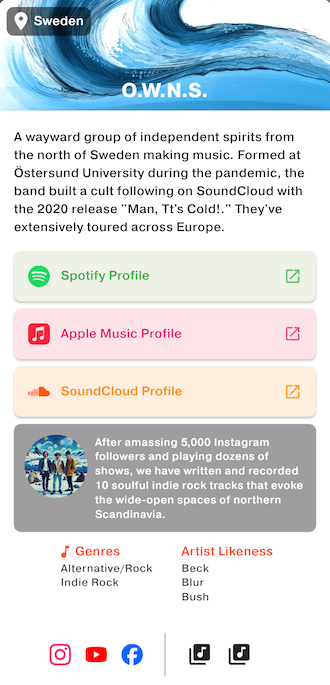
Your artist profile is your calling card to labels. Along with your demo music file, this is what the label sees when you send a demo. Fill it out completely, but don’t overdo it. More is not better. Labels are busy and will scan the profile to start, so put your best stuff in there and leave out the rest.
Tips on the Artist Profile fields
- Press Picture—click the box to add or change; upload a square PNG or JPEG, preferably 240 x 240 pixels.
- Banner Picture—appears at the top of your published profile. Click the box to add or change; upload a square PNG or JPEG, preferably 1200 x 400 pixels.
- Biography—short description of you or your band. No more than 1000 characters.
- Artist Likenesses—these are existing artists that are similar to you. Along with your main genres, this helps labels place you.
- Main Genres—pick up to two maximum.
- Pitch Text—what do you offer the label? Do you have interesting metrics or achievements?
- Spotify ID—your artist ID on Spotify. You can enter the full URL or just the Spotify ID. More info...
- Apple Music ID—the numeric artist ID. Do not enter a full URL. More info...
- SoundCloud ID—enter the full SoundCloud URL for your artist profile. More info...
- Social Links—opens a dialog box where you can enter links to your other internet profiles like Instagram, Facebook, YouTube or a web page. You can add up to three social links.
- Previous Releases—add up to your three best releases on any platform. Enter complete URLs.
You can always preview your profile by tapping Preview. Don’t forget to tap Save Profile so you don’t lose your work.
2. Upload your Demos to your Library
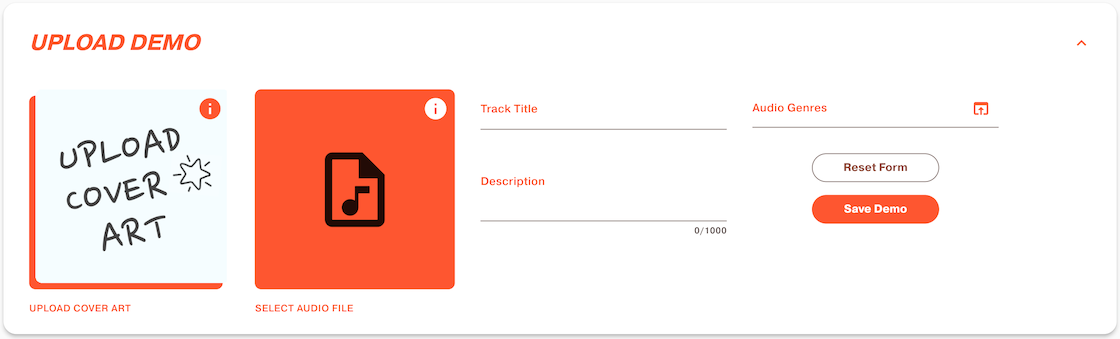
These are the songs that you will send out to labels. They should be complete and polished. You’ll also need album cover art ready to go. You can upload as many demos as you like. In the next step, you’ll choose which demos to send and where.
- Cover Art—3000 x 3000 pixels in PNG or JPEG format. See more…
- Audio—we accept stereo .wav files with the following sample rates and bit depth:
- 44.1 kHz - 16-bit
- 44.1 kHz - 24-bit
- 48 kHz - 24-bit
- 96 kHz - 24-bit
- Track Title
- Description—short text description of the track, up to 1000 characters
- Audio Genres—pick up to two maximum.
3. Search and Send Demos to Labels
Once you are ready to send off to labels, you’ll need to subscribe if you haven’t already.
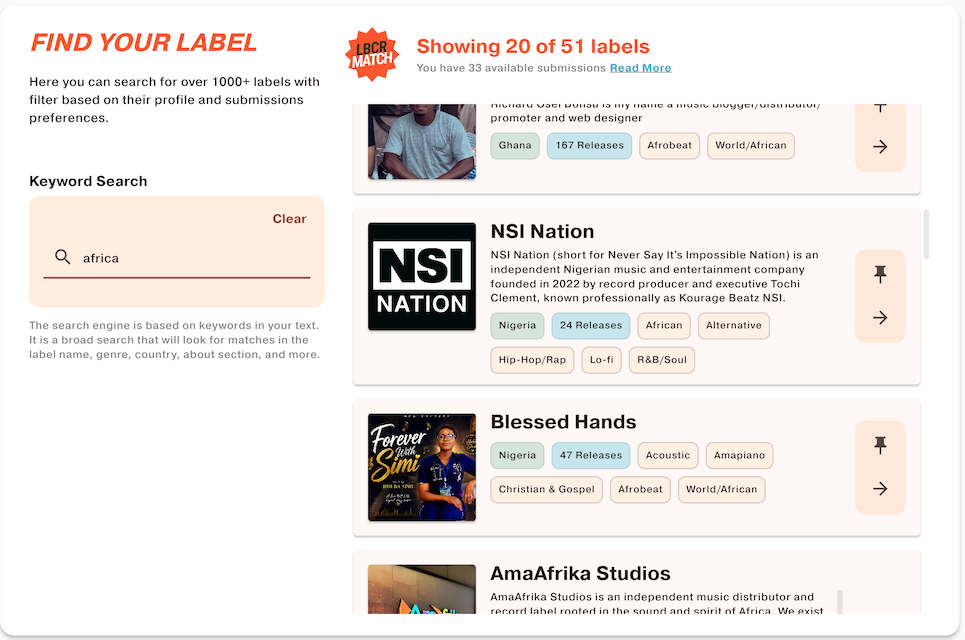
To send a demo to a label…
- In the DEMO LIBRARY, tap the Send button on the track you want to send
- Enter search criteria to find labels that might match for you
- Click the label’s name to open its detailed profile
- Click the arrow to send to a specific label. A messaging box opens where you can send a personalized note to that label.
- Tap Confirm & Send Demo to submit. The label will receive a notice and your materials in the LCBCR MATCH Demo Inbox.
- A row is added in your Sent Demos where you can monitor progress and continue chatting with the label.
Demo Submission Counts
You have a limited number of submissions each month you can send off, depending on the subscription plan you’ve chosen. You can see your available submissions for the month at the top of the Find Your Label page.
Each unique time you send a demo track to a label counts as a submission. So, for example, if you send the same demo track to five labels, you will have used five submissions. If you send three different demos to the same label, that counts as three submissions. Chatting with a label does not change submission counts.
4. Chatting with Labels — SENT DEMOS
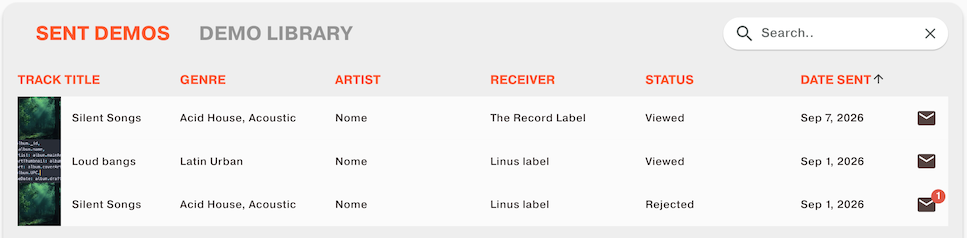
The SENT DEMOS tab shows a table of each of your submissions. You can chat with the label by clicking the envelope icon. You can also play the demo file or delete the submission altogether by clicking on the specific submission row.