Sometimes, you may see negative numbers in royalties and/or units in reporting. Those occur when the streaming serves (DSPs) make adjustments, collect fees for certain services or levy fines. Labelcaster passes those charges onto you by deducting them from your total royalties. They are summarized in your monthly statement pdf.
What are these negative amounts for exactly?
There are three ways negative values can occur.
Adjustments
From time to time, a DSP might make a minor adjustment as part of their routine reporting. Typically, they are small amounts for a customer return of a downloaded track or another DSP reconciliation. These adjustments appear as negative royalties and units in the regular reporting for a channel (e.g., Apple, YouTube, Amazon, etc.).
Fines (Artificial Streams)
Currently, only Spotify levies fines as a penalty and deterrent for artificial streams. They are triggered when Spotify detects a significant amount of artificially generated streams in a given month. Spotify makes its own judgment about artificial streams and has no appeal process.
In addition to excluding artificial streams from royalty payments, Spotify fines a set amount (~€10) per track per month when it detects a violation. In all reports, those fines appear as their own channel, “Spotify Artificial Streams Fee,” as negative unit amounts and total royalties.
See Spotify articles:
Fees for opt-in services
If you have opted into a specific marketing program, like Spotify Discovery Mode, commission fees are deducted. Unlike fines, those charges cannot surpass the royalties earned from the DSP on any given track. Per the Discovery Mode arrangement, Spotify deducts a 30% commission on each play for tracks opted in.
Labels that have specifically opted in to specific qualifying tracks (on an ISRC-by-ISRC basis) will see an additional channel in their reports called Spotify Discovery Mode. To view those commission fees, filter the monthly report by the channel “Spotify Discovery Mode”.
See Spotify Discovery Mode details here:
How can I view details of deducted royalties?
Monthly statement
You can see a summary of charges by downloading your Monthly Statement pdf:
- Go to REPORTS
- Tap the REVENUE REPORT tab
- Tap the download Monthly Statement Button to select and download individual monthly statements
Monthly Overview
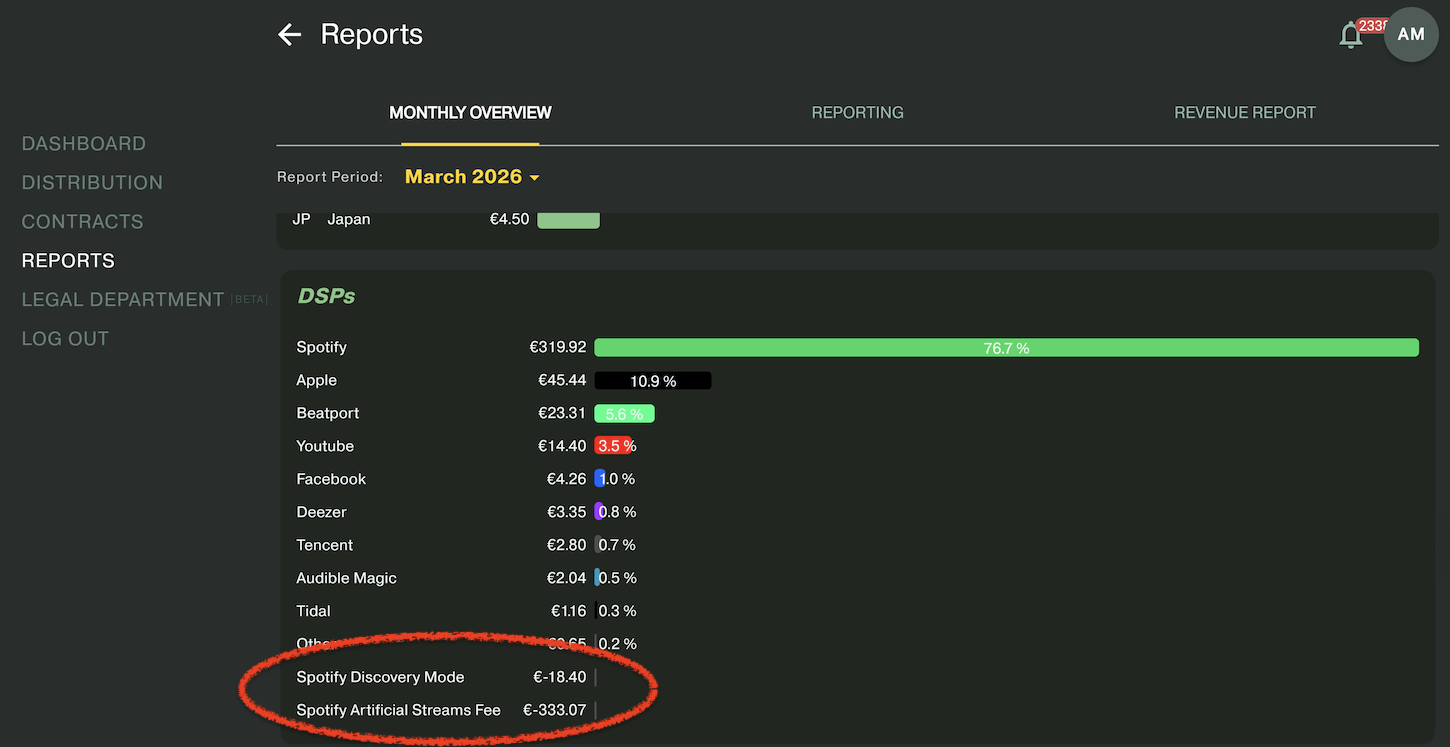
- Go to REPORTS
- Tap the MONTHLY OVERVIEW tab
- Choose a Report Period (month year)
- Scroll down to the DSPs section
- You’ll find any negative amounts at the bottom of the DSP list under Spotify Discovery Mode and Spotify Artificial Streams Fee.
Track Reporting
View which tracks and months artificial streams fines occurred in the REPORTING tab
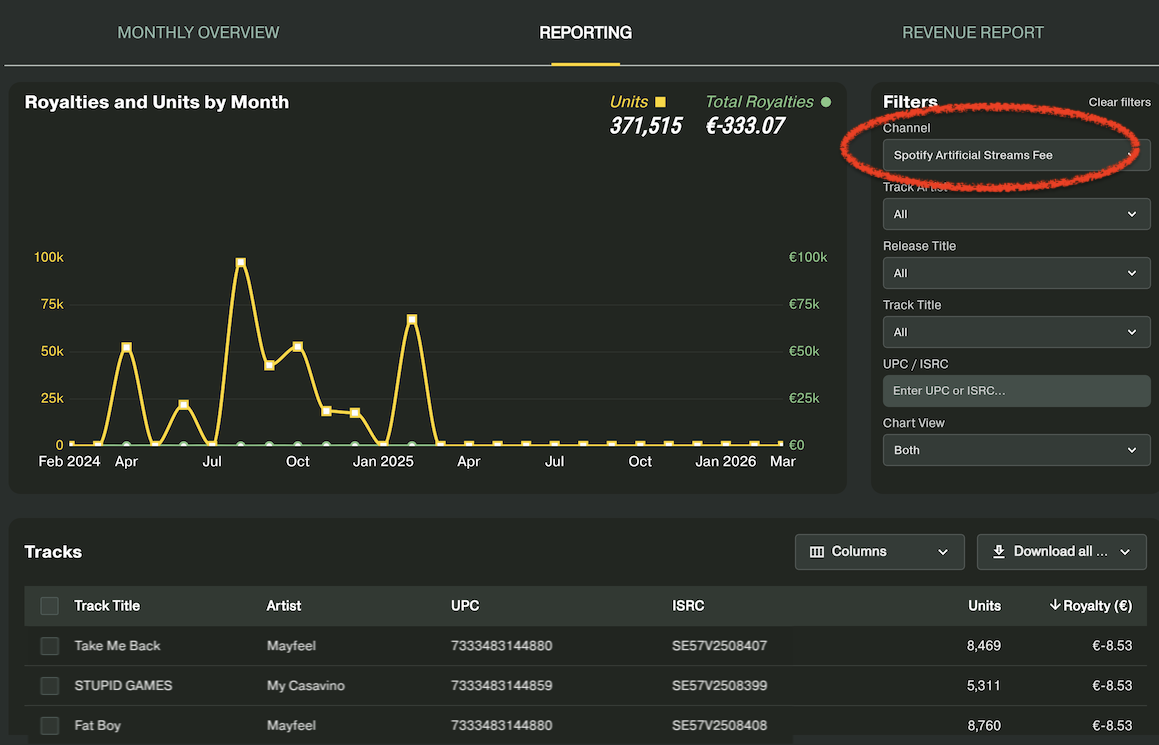
- Go to REPORTS
- Tap the REPORTING tab
- Choose a date range
- Filter the Channel on Spotify Artificial Streams Fee
- The charts show when the charge was deducted. To see which months the fine was levied/penalty occurred, change the Date type setting to Performance date. You may need to extend the date range to an early date.
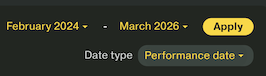
- The tracks shown are the tracks with fines